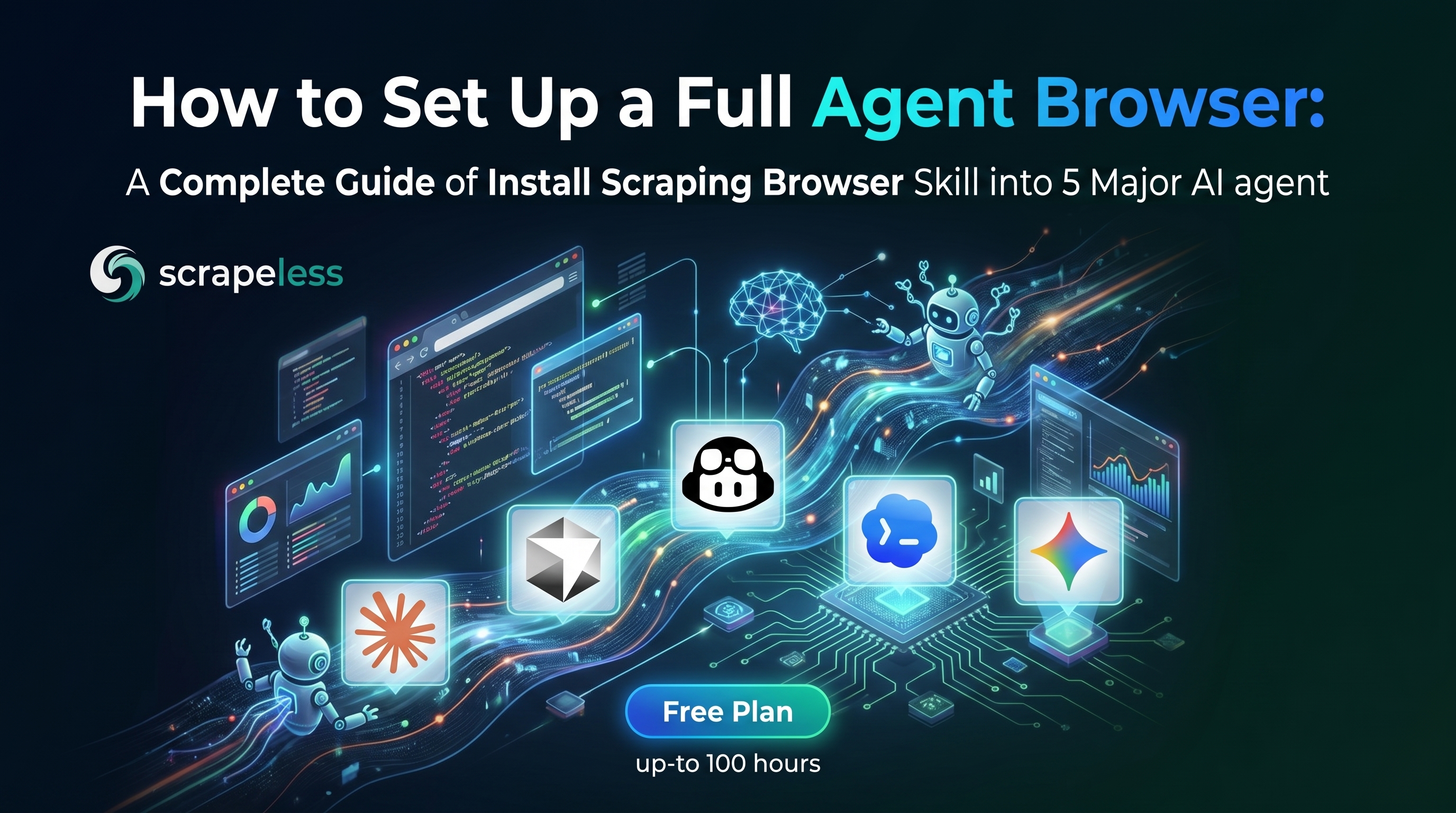
How to Set Up a Full Agent Browser: A Complete Guide of Install Scraping Browser Skill into 5 Major AI agent

Lead Scraping Automation Engineer
Key Takeaways
- One skill, five agents. Claude Code, Cursor, VS Code + Copilot, Codex CLI, and Gemini CLI all read the same
SKILL.md+ YAML-frontmatter format from a small set of conventional directories. - One underlying CLI. A single
npm install -g scrapeless-scraping-browserand a single Scrapeless API key power the skill across every agent. - One token, any agent. Configure the API key once with
scrapeless-scraping-browser config set apiKey …— any agent that shells out to the CLI reads the same stored key. - An agent browser built for the web. Scraping Browser is designed for dynamic pages, browser interaction, CAPTCHA friction, proxy routing, and production-grade automation where a normal browser or static scraper is not enough. Scraping Browser solves reCAPTCHA v2, Cloudflare Turnstile, Cloudflare 5s Challenge, and AWS Challenge natively — no extra setup.
- Best for real agent use cases. This is especially useful when your agent must inspect dashboards, navigate multi-step flows, fill forms, collect structured data, or operate across websites with changing layouts.
Introduction: Agent Skills Are the New Install-Target
AI agents are moving beyond plain text generation and into real web execution. In that shift, the browser is no longer just a display surface; it becomes the operational layer where an agent observes pages, reasons about state, and takes action across sites. That is why the term agentic browser matters: it describes a browser environment that can carry out multi-step tasks with a degree of autonomy rather than waiting for a human to click every step.
Modern AI coding agents — Claude Code, Cursor, VS Code + GitHub Copilot, OpenAI Codex CLI, and Gemini CLI — all support agent skills: drop-in packages that teach an agent a new capability on demand. The ecosystem has converged on a single packaging format (SKILL.md with YAML frontmatter) so the same skill folder works in every agent above with minimal tweaks.
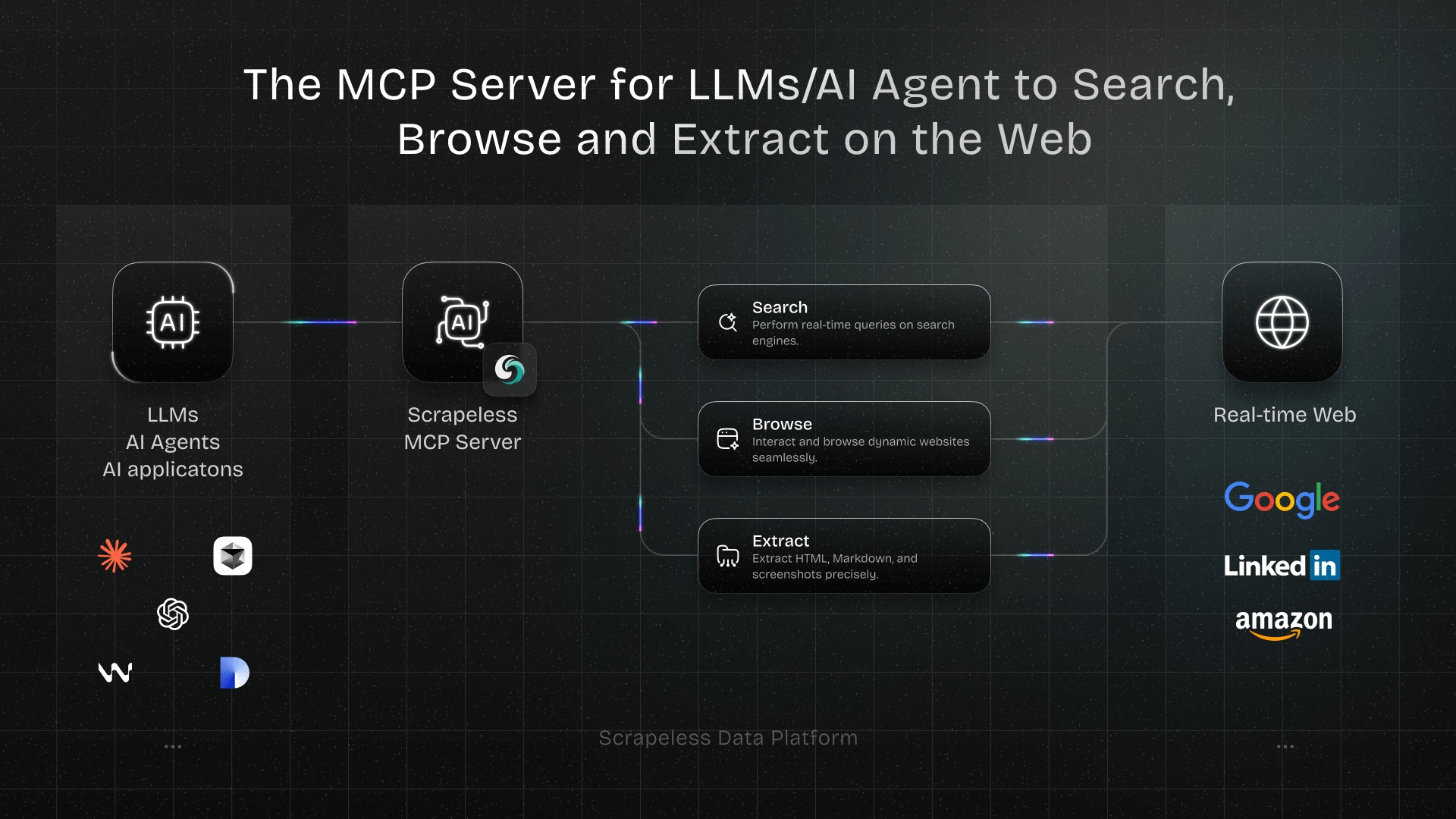
This is also where Scrapeless fits naturally. The scrapeless-Agent-browser is positioned as the bridge between agent logic and reliable browser execution, it lets the agent drive Scrapeless Scraping Browser — a customizable, anti-detection cloud browser purpose-built for web automation and AI agents — to open pages, extract data, fill forms, route traffic through residential proxies, and handle CAPTCHA, all without writing low-level browser-automation code.
This guide shows how to install the Scrapeless Scraping Browser skill into 5 major agent environments, while keeping the same underlying browser foundation across all of them.
Why Agent Browsers Matter
Traditional browser automation often breaks on the same things that real users encounter every day: dynamic JavaScript, anti-bot checks, session state, geo-sensitive content, and fast-changing layouts. Agent browsers solve that by giving the agent a browser that is designed for interaction, persistence, and web variability rather than just page rendering. For teams building production workflows, this reduces the amount of glue code needed around navigation, retries, and page-state handling.
For many companies, the browser itself is now the interface to data. An agent browser can read dashboards, move through authenticated portals, collect pricing or availability signals, verify account states, and complete web tasks that would be expensive to hard-code end to end. Scrapeless’s browser layer is especially relevant when those workflows need resilient infrastructure, proxy control, and reliable execution at scale.
What You Can Do With It
Once installed, agents gain the full Scrapeless Scraping Browser surface:
- Open any URL in Scrapeless Scraping Browser and discover the DOM with
snapshot -i. - Interact with elements via short
@e1,@e2accessibility-tree refs or standard CSS selectors. - Fill forms, click buttons, upload files, screenshot, download PDFs.
- Route traffic through residential proxies by country, state, or city.
- Configure per-session desktop fingerprint: platform (Windows, macOS, Linux), timezone, languages, and screen dimensions.
- Record sessions for later review in the Scrapeless dashboard, and open a live view for real-time inspection.
Agents trigger the skill automatically when users say things like "scrape the top 5 posts from Hacker News", "log in to this site and screenshot the dashboard", or "fill this job application with my resume and stop before the final submit".
Why Scrapeless
Scrapeless Scraping Browser handles the parts of web automation that normally eat weeks of engineering time:
- Anti-detection built in — Scrapeless's product page describes it as a "customizable, anti-detection cloud browser powered by self-developed Chromium."
- Residential proxies in 195+ countries, selectable per session.
- Automatic CAPTCHA solving for reCAPTCHA v2, Cloudflare Turnstile, Cloudflare 5s Challenge, and AWS Challenge (supported list); anything outside those four is covered by the separate Scrapeless CAPTCHA Solver product.
- Session recording and live view for real-time inspection and debugging of production runs.
- Protocol compatibility with Puppeteer and Playwright through the Scrapeless SDK.
Related products: Universal Scraping API, Proxy Solutions, and the Scrapeless MCP Server for Model Context Protocol integrations.
The Skill Format
Every agent in this guide reads skills in the same shape:
<skills-dir>/scrapeless-scraping-browser/
├── SKILL.md          # YAML frontmatter + instructions (required)
├── skill.json        # rich metadata (optional but recommended)
├── SECURITY.md       # security notes (optional)
└── references/
    └── authentication.md
The SKILL.md frontmatter tells the agent what the skill does and when to fire it:
markdown
---
name: scrapeless-scraping-browser
description: Cloud browser automation CLI for AI agents powered by Scrapeless. Use when the user needs to interact with websites using cloud browsers, including navigating pages, filling forms, clicking buttons, taking screenshots, extracting data, testing web apps, or automating any browser task with residential proxies and anti-detection features. Triggers include requests to "open a website", "fill out a form", "click a button", "take a screenshot", "scrape data from a page", "test this web app", "use a proxy", "bypass detection", or any task requiring cloud browser automation.
allowed-tools: Bash(npx scrapeless-scraping-browser-skills scrapeless-scraping-browser:*), Bash(scrapeless-scraping-browser:*)
---
The main things that differ between agents are where to drop the skill folder, how the agent discovers it at startup, and which optional frontmatter fields each agent actually reads (the core name + description are universal).
Prerequisites
Before installing the skill into any agent, set up the underlying CLI and credentials — once.
1. Install Node.js 18 or newer
From nodejs.org, or via a version manager (nvm, fnm, volta).
2. Install the Scrapeless Scraping Browser CLI globally
bash
npm install -g scrapeless-scraping-browserVerify:
bash
scrapeless-scraping-browser version3. Get a Scrapeless API key
- Sign up at app.scrapeless.com — so you can start using Scraping Browser right away.
- Generate an API token from the dashboard.
4. Configure the API key
Pick one of these methods.
Option A — config file (recommended, persistent, cross-agent):
bash
scrapeless-scraping-browser config set apiKey your_api_token_here
scrapeless-scraping-browser config get apiKey   # verify
This stores the key at ~/.scrapeless/config.json in your home directory.
Option B — environment variable:
bash
# macOS / Linux
export SCRAPELESS_API_KEY=your_api_token_here

# Windows PowerShell
$env:SCRAPELESS_API_KEY="your_api_token_here"
Add the line to ~/.zshrc, ~/.bashrc, or your Windows environment variables to persist across sessions.
Note: the config file wins over the environment variable when both are set. Only
SCRAPELESS_API_KEYis read from the environment — the Scrapeless MCP Server uses a different variable (SCRAPELESS_KEY) and is unrelated to this skill.
5. Download the skill bundle
Clone the skill package:
bash
git clone https://github.com/scrapeless-ai/scrapeless-agent-browser.git
cd scrapeless-agent-browser/skills/scraping-browser-skill
The steps below copy the contents of this folder into each agent's skills directory.
Step 1 — Install Into Claude Code (Anthropic)
Skills directory
- Global:
~/.claude/skills/scrapeless-scraping-browser/ - Project:
<repo>/.claude/skills/scrapeless-scraping-browser/
Install (global, macOS / Linux)
bash
mkdir -p ~/.claude/skills/scrapeless-scraping-browser
cp -r ./* ~/.claude/skills/scrapeless-scraping-browser/
Install (global, Windows PowerShell)
powershell
New-Item -ItemType Directory -Force -Path "$HOME\.claude\skills\scrapeless-scraping-browser"
Copy-Item -Recurse -Force .\* "$HOME\.claude\skills\scrapeless-scraping-browser\"
Activate: Claude Code picks up skill changes live within an existing ~/.claude/skills/ (no restart needed). Only required on first install if the top-level ~/.claude/skills/ directory didn't exist when the session started — in that case, restart any running claude session once.
Verify: inside Claude Code, ask "what skills are available?" — Anthropic's skills troubleshooting docs call out exactly this prompt as the listing check (source). Or run a trigger prompt like "open example.com and screenshot the homepage" and Claude invokes the skill's documented commands from SKILL.md.
Step 2 — Install Into Cursor
Minimum version: Cursor 2.4 or newer (Agent Skills shipped in the 2.4 release, January 2026).
Skills directory
- Global (canonical):
~/.agents/skills/scrapeless-scraping-browser/ - Global (also accepted):
~/.cursor/skills/,~/.claude/skills/,~/.codex/skills/ - Project (canonical):
<repo>/.agents/skills/scrapeless-scraping-browser/ - Project (also accepted):
<repo>/.cursor/skills/,<repo>/.claude/skills/,<repo>/.codex/skills/
Install (global, canonical path)
bash
mkdir -p ~/.agents/skills/scrapeless-scraping-browser
cp -r ./* ~/.agents/skills/scrapeless-scraping-browser/
Windows PowerShell
powershell
New-Item -ItemType Directory -Force -Path "$HOME\.agents\skills\scrapeless-scraping-browser"
Copy-Item -Recurse -Force .\* "$HOME\.agents\skills\scrapeless-scraping-browser\"
Activate: "When Cursor starts, it automatically discovers skills from skill directories and makes them available to Agent." (Cursor docs)
Verify: open Cursor Settings (Cmd/Ctrl+Shift+J) → Rules — scrapeless-scraping-browser appears under Agent Decides. Or type / in Agent chat to see the skill in the slash-command picker. Or prompt "extract the top 5 stories from news.ycombinator.com as JSON" — the agent should chain the skill's commands (new-session → open → get html → eval) automatically.
Step 3 — Install Into VS Code + GitHub Copilot
GitHub Copilot added Agent Skills support in December 2025 (changelog). Copilot in VS Code auto-discovers skills from three location families:
- Global (personal):
~/.copilot/skills/,~/.claude/skills/, or~/.agents/skills/ - Project (Copilot-native):
<repo>/.github/skills/scrapeless-scraping-browser/ - Project (cross-agent):
<repo>/.claude/skills/...or<repo>/.agents/skills/...
Frontmatter note: Copilot requires only
nameanddescription;allowed-toolsandlicenseare optional. GitHub's Copilot skills docs state verbatim: "In yourSKILL.mdfrontmatter, you can use theallowed-toolsfield to list the tools Copilot may use without asking for confirmation each time." Review the skill source before granting pre-approval.
Install (global, macOS / Linux)
bash
mkdir -p ~/.copilot/skills/scrapeless-scraping-browser
cp -r ./* ~/.copilot/skills/scrapeless-scraping-browser/
Windows PowerShell
powershell
New-Item -ItemType Directory -Force -Path "$HOME\.copilot\skills\scrapeless-scraping-browser"
Copy-Item -Recurse -Force .\* "$HOME\.copilot\skills\scrapeless-scraping-browser\"
Install (project-level, recommended for team use)
bash
cd <your-repo>
mkdir -p .github/skills/scrapeless-scraping-browser
cp -r /path/to/skill/* .github/skills/scrapeless-scraping-browser/
git add .github/skills/scrapeless-scraping-browser
git commit -m "Add scrapeless-scraping-browser skill"
Activate: per GitHub's December 18 2025 changelog, Copilot picks up skills placed in the supported directories without extra configuration. Skills load content progressively only when relevant to a task.
Verify: open Copilot Chat and type /skills — per VS Code's Copilot skills docs, this "quickly opens the Configure Skills menu" where scrapeless-scraping-browser should appear. Or prompt "scrape the product prices from this URL" / "screenshot example.com" and watch Copilot invoke the skill.
Step 4 — Install Into OpenAI Codex CLI
Minimum version: Any Codex CLI build that documents Agent Skills — update to the latest codex CLI to be safe (Codex Skills docs).
Skills directory
- Global:
$HOME/.agents/skills/scrapeless-scraping-browser/— the documented user scope. - Project:
$CWD/.agents/skills/, any parent directory's.agents/skills/, or$REPO_ROOT/.agents/skills/. Codex walks from CWD up to the repo root. ~/.codex/skills/is NOT auto-discovered — if you want Codex to read from there, register it explicitly in~/.codex/config.tomlunder[[skills.config]]with an absolute path, e.g.path = "/home/<you>/.codex/skills/scrapeless-scraping-browser/SKILL.md"(Codex docs show absolute paths in the[[skills.config]]example — tilde expansion inside TOML is not documented).
Install (global)
bash
mkdir -p ~/.agents/skills/scrapeless-scraping-browser
cp -r ./* ~/.agents/skills/scrapeless-scraping-browser/
Windows PowerShell
powershell
New-Item -ItemType Directory -Force -Path "$HOME\.agents\skills\scrapeless-scraping-browser"
Copy-Item -Recurse -Force .\* "$HOME\.agents\skills\scrapeless-scraping-browser\"
Activate: "Codex detects skill changes automatically. If an update doesn't appear, restart Codex." (Codex Skills docs)
Verify: at the Codex prompt, run /skills to list available skills. Invoke the skill directly by typing $scrapeless-scraping-browser in your message, or test the auto-trigger with "fill the sign-up form at example.com/signup and stop before the final submit".
Step 5 — Install Into Gemini CLI (Google)
Skills directory
- Global:
~/.gemini/skills/scrapeless-scraping-browser/—~/.agents/skills/is an officially documented alias that takes precedence over~/.gemini/skills/when both exist. - Project:
<repo>/.gemini/skills/scrapeless-scraping-browser/— or use the<repo>/.agents/skills/alias.
Install
bash
mkdir -p ~/.gemini/skills/scrapeless-scraping-browser
cp -r ./* ~/.gemini/skills/scrapeless-scraping-browser/
Windows PowerShell
powershell
New-Item -ItemType Directory -Force -Path "$HOME\.gemini\skills\scrapeless-scraping-browser"
Copy-Item -Recurse -Force .\* "$HOME\.gemini\skills\scrapeless-scraping-browser\"
Activate: run /skills reload in-session to refresh the list of discovered skills from all tiers (Gemini CLI skills docs).
Verify: run /skills list inside a Gemini CLI session — scrapeless-scraping-browser should appear in the discovered list. Then test with "open booking.com from a Tokyo residential proxy and pull the top 5 hotels for June 15–18"; the model will request activation before running the skill's commands.
Step 6 — One Skill, Every Agent (the Symlink Trick)
If you use multiple agents and don't want to copy the skill into N directories, install once and symlink the rest.
macOS / Linux
bash
# Install once as the source of truth:
mkdir -p ~/.agents/skills/scrapeless-scraping-browser
cp -r ./* ~/.agents/skills/scrapeless-scraping-browser/

# Symlink for every other agent:
ln -s ~/.agents/skills/scrapeless-scraping-browser ~/.claude/skills/scrapeless-scraping-browser
ln -s ~/.agents/skills/scrapeless-scraping-browser ~/.cursor/skills/scrapeless-scraping-browser
ln -s ~/.agents/skills/scrapeless-scraping-browser ~/.copilot/skills/scrapeless-scraping-browser
ln -s ~/.agents/skills/scrapeless-scraping-browser ~/.gemini/skills/scrapeless-scraping-browser
Now updating the source updates every agent simultaneously.
Windows PowerShell — on Windows 10/11 with Developer Mode enabled (Settings → System → Advanced → For developers on Windows 11 25H2+; the For developers page directly on earlier builds), symlinks work without elevation. Otherwise run PowerShell as Administrator. See Microsoft's Developer Mode docs.
powershell
$src = "$HOME\.agents\skills\scrapeless-scraping-browser"
"claude","cursor","copilot","gemini" | ForEach-Object {
  $dest = "$HOME\.$_\skills\scrapeless-scraping-browser"
  New-Item -ItemType Directory -Force -Path (Split-Path $dest)
  New-Item -ItemType SymbolicLink -Path $dest -Target $src
}
Step 7 — Project-Level vs Global: Which to Pick
| Scope | When to use |
|---|---|
Global (~/.<agent>/skills/) |
Personal workflows; the skill should be available across every project on the local machine. |
Project (<repo>/.<agent>/skills/) |
Team workflows; every teammate who clones the repo should inherit the skill. Commit the skill folder to git. |
Precedence differs per agent. Claude Code: enterprise > personal (global) > project — when the same skill exists at multiple levels, the global user-level copy wins over the project copy (see Anthropic's skills docs). Other agents publish their own resolution rules (for example, Gemini CLI documents that the .agents/skills/ alias takes precedence over .gemini/skills/ within the same tier) — check each agent's own section above, and their official docs, for the authoritative order.
Step 8 — Troubleshooting Common Issues
Skill doesn't appear after copying. Each agent's refresh path is different: Claude Code — docs say a top-level ~/.claude/skills/ directory created after session start requires restarting claude; changes within an existing directory are picked up live. Codex — docs say "Codex detects skill changes automatically. If an update doesn't appear, restart Codex." Gemini CLI — run /skills reload in-session. Cursor and VS Code / Copilot — their docs describe startup auto-discovery; if a skill is missing, restart the editor.
Agent says SCRAPELESS_API_KEY is required. The key isn't in the environment of the agent process. Prefer the config file method (scrapeless-scraping-browser config set apiKey ...) — it's process-independent and works across every agent.
Trigger doesn't fire automatically. Open SKILL.md in the installed location and check the frontmatter description — agents use it as a routing signal. Add user phrasings to skill.json's triggers list to broaden matching.
Conclusion
Agentic browsers are becoming a practical default for web-heavy automation, and Scrapeless fits that trend by providing a cloud browser layer that agents can actually rely on. If your workflows depend on navigation, interaction, dynamic content, or browser-based data access, the Scrapeless Scraping Browser skill is a strong foundation. The big advantage is simple: you install one browser skill once, then reuse it across multiple major agents without rebuilding the execution layer each time. The scrapeless-agent-browser repo packages browser execution into a reusable agent layer rather than treating the browser as a one-off script dependency.
Stay tuned for more hands-on use cases in our upcoming blog guides. For now, join the official Scrapeless community to get the latest updates and claim access to your free plan!
Discord
Telegram
FAQ
Q1: Do I need a separate API key for each agent?
No. Configure the Scrapeless API key once with scrapeless-scraping-browser config set apiKey ... and every agent that runs the CLI picks it up automatically.
Q2: Can I use the skill at the project level and commit it to my repo?
Yes. Every agent in this guide supports a project-level skills directory (e.g. <repo>/.claude/skills/, <repo>/.github/skills/, <repo>/.agents/skills/). Committing the skill makes it available to every teammate who clones the repo.
Q3: Do I need to install the scrapeless-scraping-browser npm package if I already have the skill installed?
Yes — the skill is the instruction layer for the agent; the npm package is the CLI it drives. The CLI must be reachable by the agent, either globally installed (npm install -g scrapeless-scraping-browser) or invoked via npx scrapeless-scraping-browser ….
Q4: How does the skill handle CAPTCHAs?
Scraping Browser automatically solves four CAPTCHA types out of the box — reCaptcha v2, Cloudflare Turnstile, Cloudflare 5s Challenge, and AWS Challenge (official supported list). The docs note that "subsequent operations need to be implemented by yourself" — the browser solves, your code (or the agent) drives what happens next. For anything outside those four types, the Scrapeless CAPTCHA Solver is a separate product.
Q5: Can the skill be used together with Puppeteer or Playwright code?
Yes. Scrapeless Scraping Browser is protocol-compatible with Puppeteer and Playwright via the Scrapeless Scraping Browser docs, so agents can combine skill-driven sessions with existing automation scripts.
At Scrapeless, we only access publicly available data while strictly complying with applicable laws, regulations, and website privacy policies. The content in this blog is for demonstration purposes only and does not involve any illegal or infringing activities. We make no guarantees and disclaim all liability for the use of information from this blog or third-party links. Before engaging in any scraping activities, consult your legal advisor and review the target website's terms of service or obtain the necessary permissions.